
Download Window Clippings – Free, Secure Screen Capture Tool for Windows & Mac
Looking for a lightweight, fast, and reliable screen capture tool? Window Clippings is the perfect choice for users who want to capture parts of their screen without the clutter of heavy software. This minimal yet powerful utility enhances Windows’ built-in Print Screen functionality with smart, intuitive controls.
Whether you're sharing a bug report, saving a tutorial snippet, or archiving a conversation, Window Clippings delivers precision and speed. Available for both Windows and Mac, this free tool runs silently in the system tray, ready to capture at a moment’s notice. With automatic saving, customizable hotkeys, and a clean interface, it’s ideal for casual users and professionals alike.
Best of all, it’s completely free, secure, and regularly updated to ensure compatibility with the latest OS versions.
Effortless Screen Capture with Smart, Minimal Design
One of the standout qualities of Window Clippings is its ability to simplify screen capturing without sacrificing functionality. Unlike bulky software that demands setup, tutorials, and constant monitoring, Window Clippings operates on a “set and forget” principle. Once installed, it runs quietly in the system tray, waiting for your command.
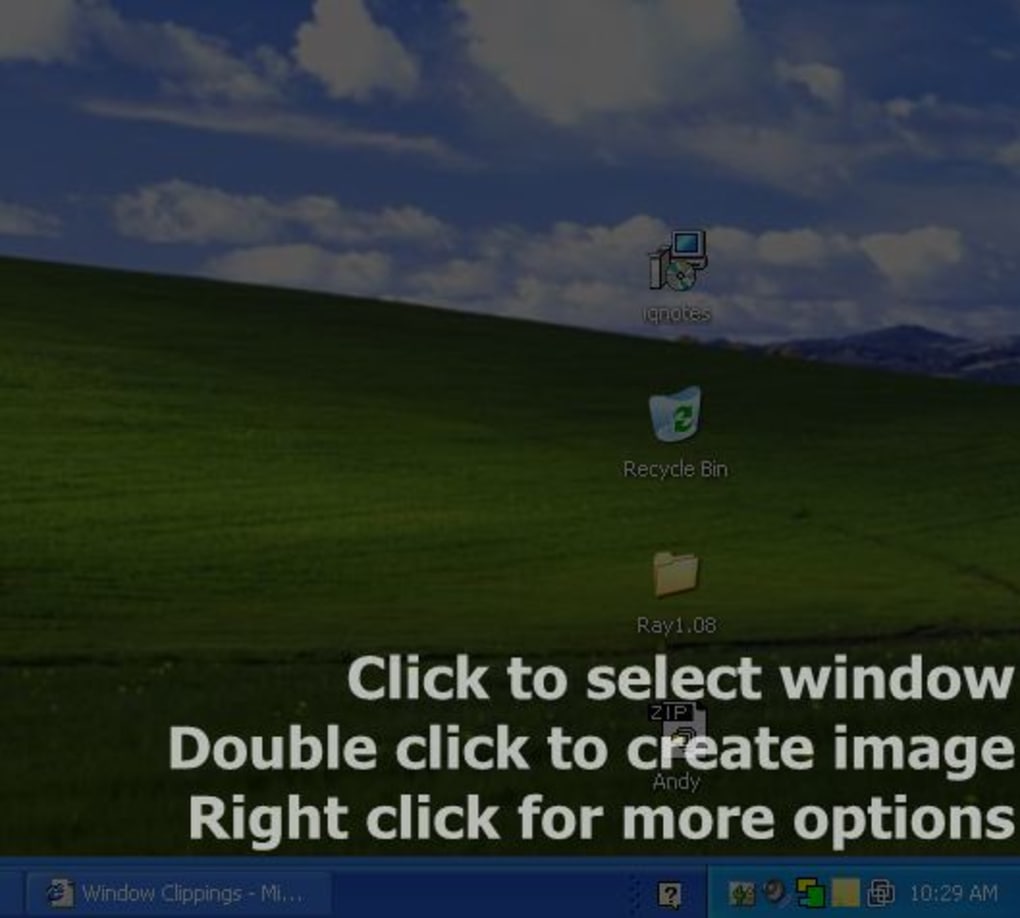
Pressing the Print Screen key triggers the capture mode instantly—no menus, no delays. The screen dims slightly, and a crosshair appears, allowing you to select any region with pixel-perfect accuracy. This visual feedback is both intuitive and reassuring, especially when capturing small details like form fields or error messages.
The tool doesn’t just stop at region selection. It automatically saves the captured image to your chosen folder, with options to rename files using timestamps or custom prefixes. This is a major time-saver for users who frequently share screenshots in emails, documentation, or support tickets.
You can also copy the image directly to the clipboard, making it ideal for quick pasting into Word, Slack, or design tools. The interface is so clean that it barely exists—there’s no distraction, no ads, and no unnecessary features. Yet, despite its simplicity, Window Clippings is packed with smart automation.
For example, it remembers your last capture area, so if you’re documenting a recurring UI element, you can re-capture it with minimal effort.
What truly sets Window Clippings apart is its seamless integration with the operating system. It doesn’t interfere with other apps, doesn’t slow down your machine, and doesn’t require admin rights. It’s the kind of software that works so well, you forget it’s even running. Whether you're a student, remote worker, or tech support agent, this tool fits effortlessly into your daily workflow. It’s not flashy, but it’s incredibly effective—exactly what you need when you want to capture a screen and move on.
Advanced Features That Make a Big Difference
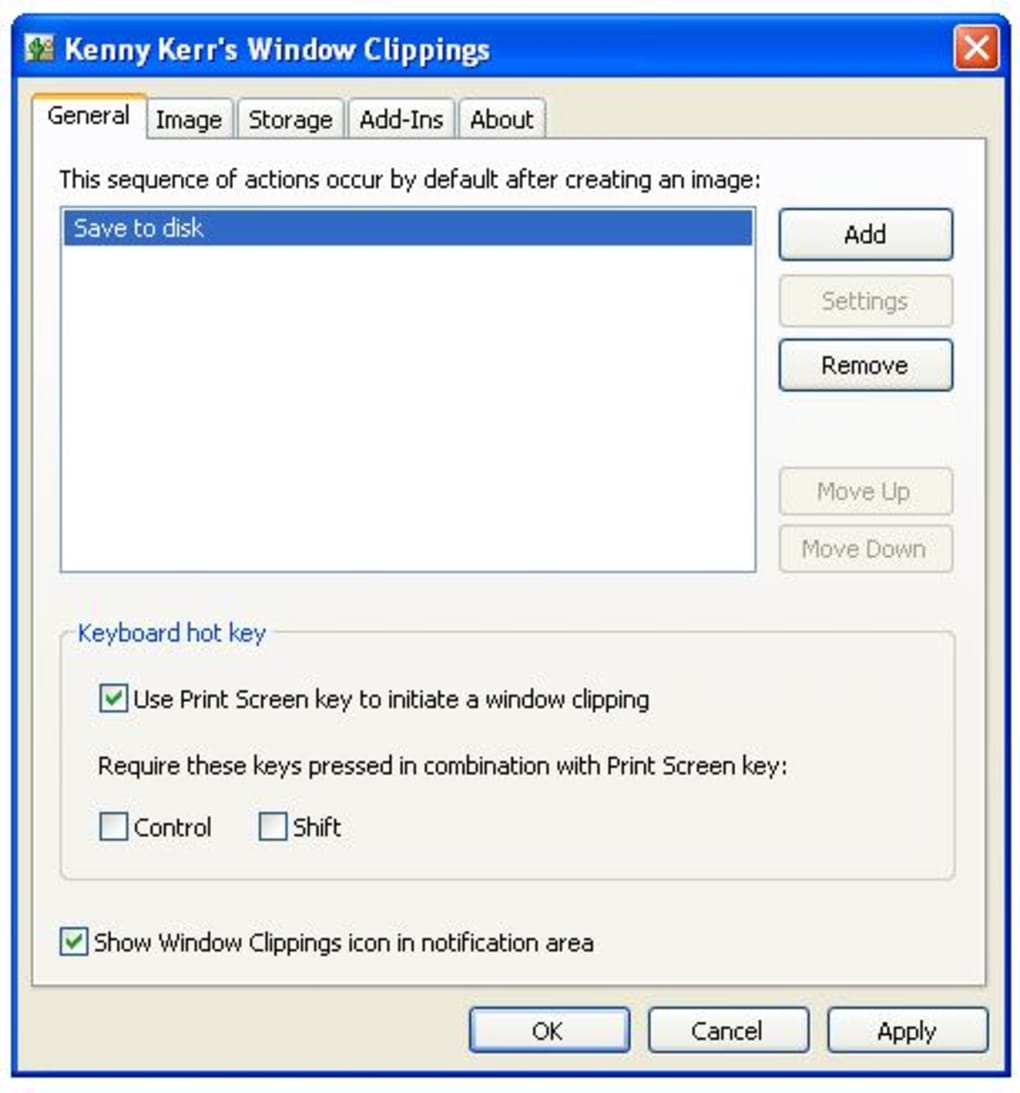
Beyond its minimalist charm, Window Clippings offers several advanced features that elevate it above basic screen capture tools. One of the most appreciated is the customizable hotkey system. While the default Print Screen key works out of the box, you can reassign it to any combination—like Ctrl+Shift+S or Alt+P—giving you full control over when and how you trigger a capture. This is especially useful if you use other software that relies on the Print Screen key, such as game capture tools or legacy apps.
Another powerful feature is the auto-save and auto-rename functionality. You can set the software to save every capture to a specific folder (e.g., “Screenshots” or “Support”) and choose from multiple file formats: PNG, JPG, BMP, and even WEBP for web use. The auto-rename option prevents duplicate filenames by appending timestamps or sequential numbers. This is a lifesaver for users who take dozens of screenshots in a single day—no more manual renaming or file conflicts.
For those who need more control, Window Clippings supports capture delay—a feature that lets you wait 3, 5, or 10 seconds before the screenshot is taken. This is perfect for capturing dropdown menus, pop-up windows, or animations that appear after a brief pause. Additionally, the tool offers clipboard integration, so you can copy the image to the clipboard instantly and paste it anywhere without saving a file first. This dual functionality—save and copy—makes it versatile for both long-term archiving and real-time sharing.
Security is also a priority. The software doesn’t collect or transmit any data from your screen. All captures remain local, ensuring privacy and compliance with data protection standards. Whether you’re working on sensitive documents or sharing confidential screenshots, you can trust that your content stays private.
Compatibility, Installation, and Usage Guide
Installing Window Clippings is a breeze, regardless of whether you're using Windows 10, Windows 11, or macOS. The software is available as a free download from the official website, with a lightweight installer that takes less than 30 seconds to complete. There’s no need to extract files or run setup wizards—just download, run, and you’re ready to go.
After installation, the app launches in the background and appears as a small icon in your system tray (Windows) or menu bar (Mac). You can access its settings by right-clicking the icon or using the built-in shortcut. The settings panel is clean and easy to navigate, with clearly labeled options for hotkeys, save location, file format, and capture delay.
To use Window Clippings, simply press your configured hotkey (default: Print Screen). The screen will dim, and a crosshair will appear. Click and drag to select the area you want to capture.
Release the mouse button, and the image is instantly saved or copied to the clipboard. That’s it—no additional steps, no complex workflows. The tool is designed for speed and simplicity, making it perfect for on-the-fly captures.
For users who want even more control, the software supports keyboard shortcuts for common actions. For example, you can press Ctrl+Shift+S to open the last capture folder or Ctrl+Shift+P to toggle auto-save. These small touches make the experience feel polished and professional.
Regular updates are released to improve stability, fix bugs, and ensure compatibility with new OS versions. The developers are responsive to user feedback, and the community forum is active with helpful tips and troubleshooting advice.
Pros and Cons: Is Window Clippings Right for You?
- Pros:
- Lightweight and fast—no performance impact
- Free to download and use with no hidden costs
- Simple, intuitive interface with minimal learning curve
- Supports both Windows and Mac systems
- Auto-save and auto-rename features for organized file management
- Customizable hotkeys and capture delay options
- Secure—no data is uploaded or tracked
- Clipboard integration for quick sharing
- Cons:
- Lacks advanced editing tools (e.g., annotations, cropping)
- No built-in cloud sync or sharing features
- Limited to screen captures—no video recording
- Basic UI may feel too minimal for power users
- Mac version lacks some native integration features
Frequently Asked Questions (FAQ)
Final Verdict: A Must-Have for Quick Screen Captures
If you're looking for a free, secure, and reliable screen capture tool that works seamlessly with your daily tasks, Window Clippings is an excellent choice. It’s not the most feature-rich option on the market, but it excels where it matters most: speed, simplicity, and reliability. Whether you're a student documenting a lecture, a professional sharing a bug fix, or a content creator archiving UI elements, this tool delivers exactly what you need—nothing more, nothing less.
With its minimal design, smart automation, and cross-platform support, Window Clippings stands out as one of the best lightweight screen capture tools available. It’s easy to install, easy to use, and easy to forget—exactly what a good utility should be. If you're tired of clunky software that slows you down, give Window Clippings a try. Download it today and experience the joy of effortless screen capturing.
Download Window Clippings now and make your screen capture workflow faster, cleaner, and more efficient.







